Free email checks, before you click
Not sure about an email? Ask Tuno. The free plan gives you 10 email checks a month, and warns you about risky websites as you browse. No card, and no time limit.
Tuno is an AI helper: a computer program, not a person.
This is what Tuno tells you
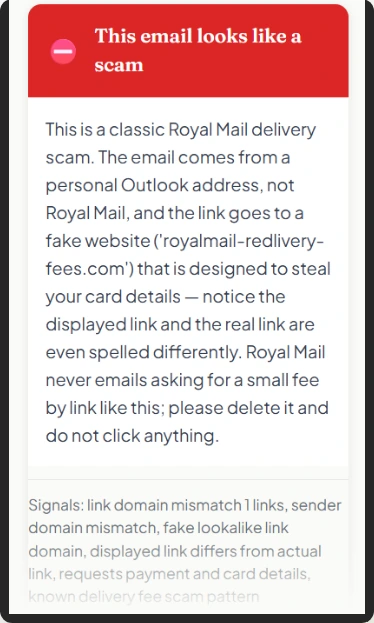
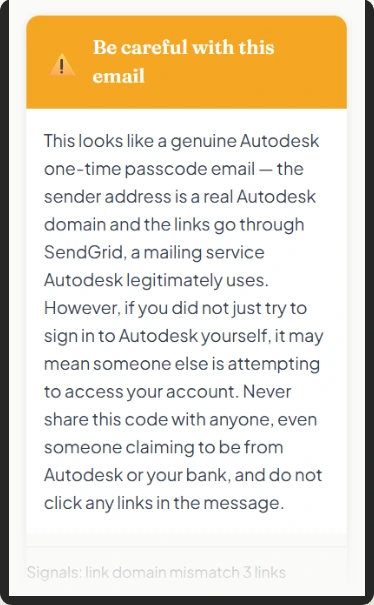
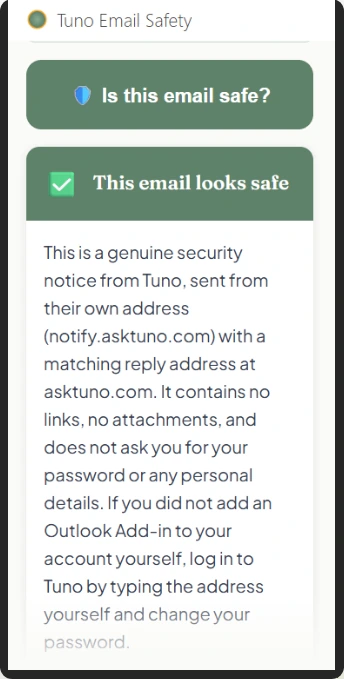
Press “Is this email safe?” and Tuno tells you if it looks OK, if you should take care, or if it looks like a scam.
“Bloody marvellous!”
Which one do I need?
What does your email address end in? Choose one.
Gmail or Yahoo
You need the Tuno browser helper, in Chrome or Edge. It adds an “Is this email safe?” button to Gmail and Yahoo Mail, and warns you about risky websites.
Outlook, Hotmail, Live or MSN
Tuno works with your email. If you open your email in the Outlook program, get Tuno for Outlook. If you open it on a web page in Chrome or Edge, add the Tuno browser helper. Not sure which? If your email opens in a window with a web address along the top, it is a web page.
BT, Sky, TalkTalk, Virgin Media, iCloud or AOL
Sorry, Tuno can't check these emails yet. The Tuno browser helper can still warn you about risky websites in Chrome or Edge.
Something else
Tuno checks Gmail, Yahoo Mail and Microsoft email (Outlook.com, Hotmail, Live, MSN and Microsoft 365 work email). Gmail and Yahoo need the Tuno browser helper in Chrome or Edge. Other addresses are not covered yet.
Examples shown as the Tuno email check displays them. The emails are made up, and Tuno isn't connected to any company or sender named in them.
A UK company: Tuno AI Ltd, registered in England and Wales, company number 17337203.
There are 4 short steps
- Make your free account.
- Add Tuno to your browser, or to Outlook if you use a Microsoft email address.
- Sign in to it with your email address and password.
- Confirm your email from the message we send you.
Have a pen and paper ready. You will need to write down your password.
Step 1 of 4: Make your free account
It takes about two minutes. We will then show you how to add Tuno.
Create a free accountSteps 2 and 3: add Tuno, then sign in
Do this after step 1. Add Tuno below, then open it and sign in with the email address and password you wrote down.
In Chrome or Edge, Tuno warns you about scam websites. It also adds an “Is this email safe?” button to Gmail, Yahoo Mail and Outlook.com or Hotmail. The Outlook add-in is only for Microsoft email (addresses ending @outlook.com, @hotmail.com, @live.com or @msn.com, or Microsoft 365 work email). In Outlook, press “Is this email safe?” on any email.
Want patient help with anything on your Windows PC, out loud or typed? Try Tuno free for 14 days, then from £6.99 a month. See the plans.