Stuck? Ask Tuno.
Tuno is a warm, patient helper that lives on your Windows PC or laptop. Ask out loud or type, and it talks you through the next step. You do the clicking.
For Windows PCs and laptops · Free for 14 days, no card needed · From £6.99 a month after that
Help is an allowance, and email checks use it too. When it is all used up, Tuno pauses until more help is added or, on a paid plan, the month starts again.
Tuno is an AI helper. It is not a person, and it will never pretend to be one.
Set-up is a one-off step at the start. After that, you can ask Tuno from your own PC.
Why people like it
When you ask
No waiting, no booking. Just ask. A few clicks, and you are talking. For an email, one click.
No appointment
Nothing to book. No trip to a repair shop, no waiting for a call back. Open Tuno and ask.
No hold music
There is no queue to wait in.
Patient
Not sure? Ask again. Tuno takes its time to explain.
You stay in charge
Tuno shows you what to do. You decide, and you do the clicking.
Three steps
1
Open Tuno
Click the little Tuno circle near the clock.
2
Say it or type it
In your own words, as you would to a friend.
3
Follow along
Tuno guides you one step at a time. You always do the clicking.
What an answer looks like
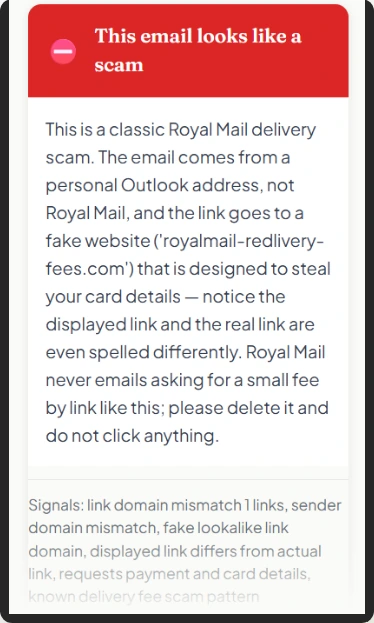
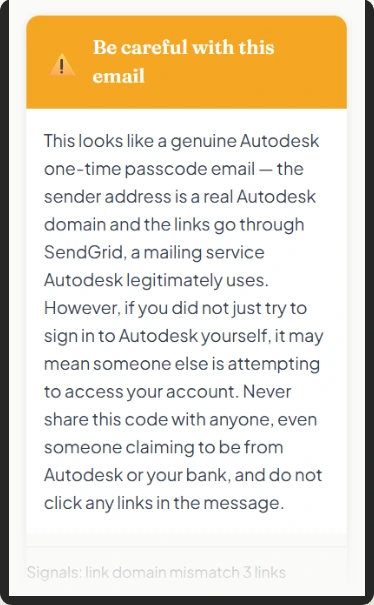
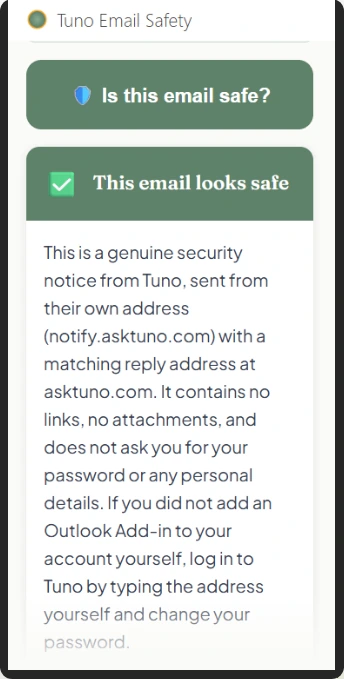
Ask about an email, and get a straight answer
Not sure about an email? Ask Tuno. It tells you if the email looks fine, if you should take care, or if it looks like a scam. It also lists what it noticed. Then you decide.
Here it is in an email inbox: open the email, click “Is this email safe?”, and Tuno checks it for you.
Want this on your own emails? The free plan includes 10 email checks a month. No card. See the free plan
Which one do I need?
What does your email address end in? Choose one.
Gmail or Yahoo
You need the Tuno browser helper, in Chrome or Edge. It adds an “Is this email safe?” button to Gmail and Yahoo Mail, and warns you about risky websites.
Outlook, Hotmail, Live or MSN
Tuno works with your email. If you open your email in the Outlook program, get Tuno for Outlook. If you open it on a web page in Chrome or Edge, add the Tuno browser helper. Not sure which? If your email opens in a window with a web address along the top, it is a web page.
BT, Sky, TalkTalk, Virgin Media, iCloud or AOL
Sorry, Tuno can't check these emails yet. The Tuno browser helper can still warn you about risky websites in Chrome or Edge.
Something else
Tuno checks Gmail, Yahoo Mail and Microsoft email (Outlook.com, Hotmail, Live, MSN and Microsoft 365 work email). Gmail and Yahoo need the Tuno browser helper in Chrome or Edge. Other addresses are not covered yet.
Examples shown as the Tuno email check displays them. The emails are made up, and Tuno isn't connected to any company or sender named in them.
What to know first
Tuno works on Windows 10 and 11 PCs and laptops. The free 14-day trial has a taster of voice help (up to 30 minutes). Every paid plan has voice help too. The free plan gives you 10 email checks a month, in your browser or in Outlook.
Try it when you are ready
Free for 14 days. No card needed.